
Update your contact details, add a photo, and turn on text alerts for visitor arrivals.
Before you start
- Sign in to the SV3 Enterprise Dashboard.
- To receive text alerts, your profile needs a cell phone number. Step 4 covers adding one.
Steps
- In the upper-right corner of the Dashboard, click your email address.
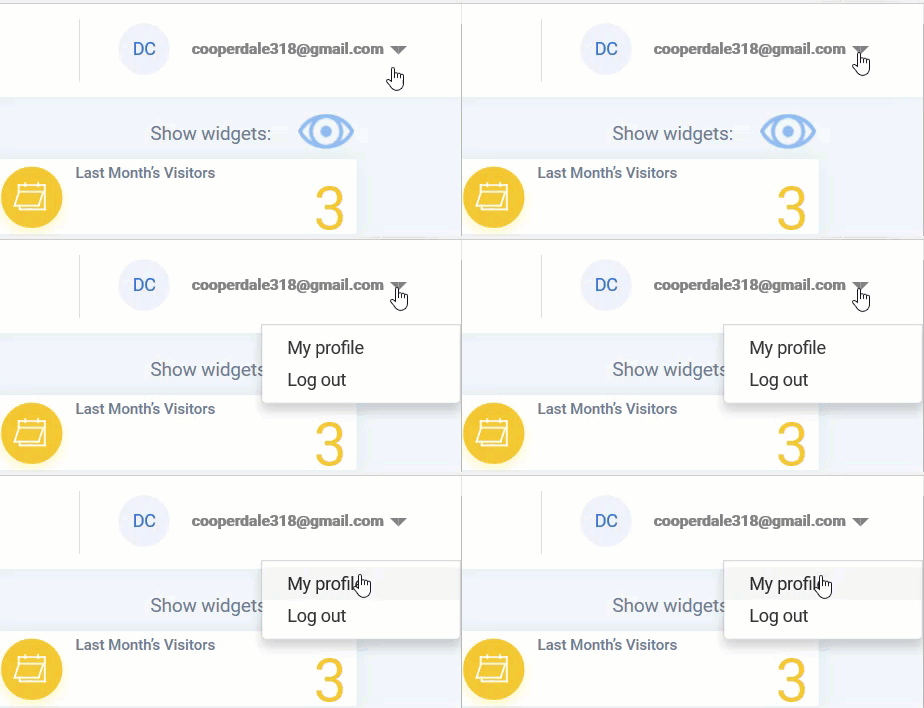
- Select My Profile.
- Click the Edit
 icon.
icon. - Enter or update your Cell phone, and/or Work phone.
- To add a picture, click the photo
 icon. The Upload Profile Picture box appears.
 - Select and upload your picture.
- Click Save.
- To get a text when your visitor arrives, click the Receive SMS notifications slider.
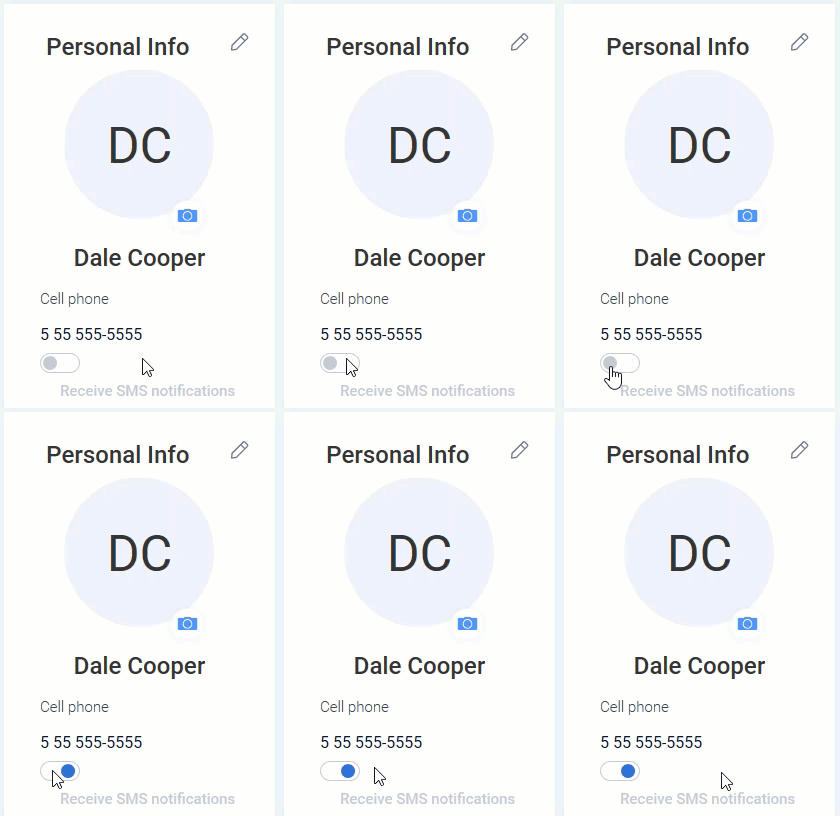
- Click Subscribe on the confirmation message.
Tip: To stop the text messages, click the Receive SMS notifications slider again to disable. - To enable notifications or Multi-Factor Authentication, select the other sliders accordingly.
For information on Multi-Factor Authentication, see the article: "Enable multi-factor authentication".
Result
Your updated details appear on the My Profile page. If you turned on notifications, you get a text message when your visitor arrives.
Note: The My Profile page also lists the Locations and roles your profile is assigned to, under Locations and Roles.
Related
- See how to enable multi-factor authentication
- Learn which emails hosts receive
- See how to set or reset your password
- Learn what each user role can do
Comments
0 comments
Article is closed for comments.