
Schedule one repeating series for up to ten visitors at once, such as a contract crew who returns on the same days each week.
Before you start
- You need a role at the Location where the visits take place. Any role can schedule visits.
- The host must already be a user in that Location's directory. You cannot name a host who is not in the directory.
- If you are a Global Admin, assign yourself a role at the Location first. A Global Admin with no role at a Location cannot schedule visits there or act as the host.
- Have the name and details for each visitor ready. You can add up to ten visitors to one series.
Steps
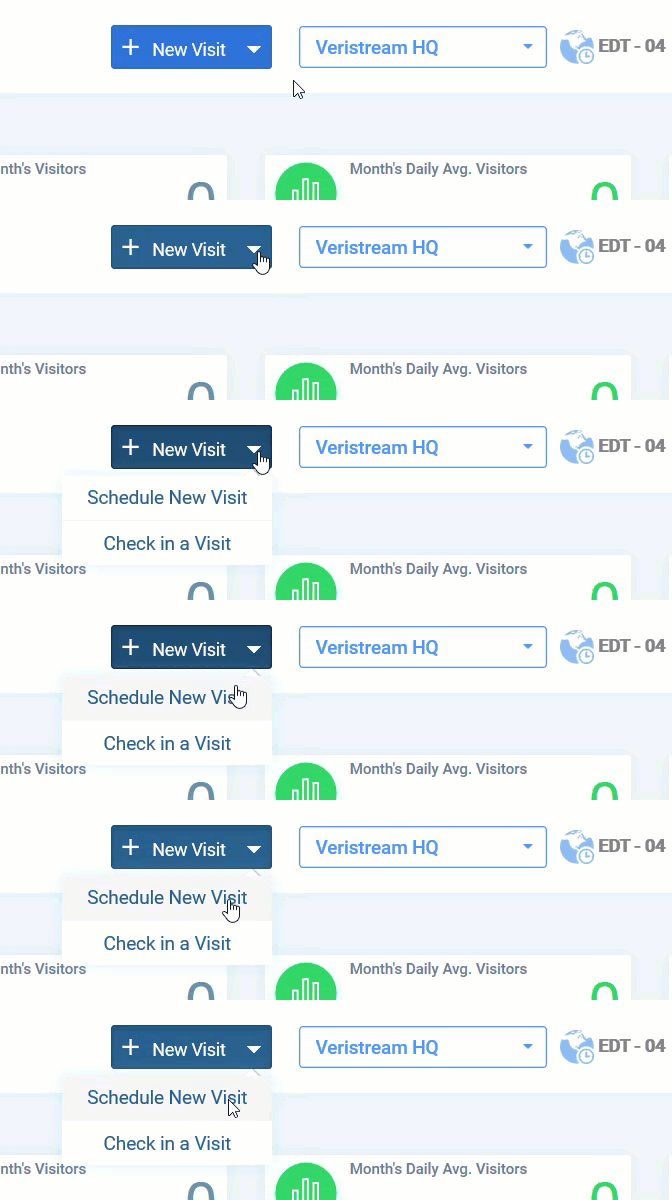
- On the Dashboard, click New Visit.
- Select Schedule New Visit. The Schedule a Visitor window opens.
- Select the Group Visit tab.
- Click the Recurring Visit icon. The Recurring Visit panel opens.
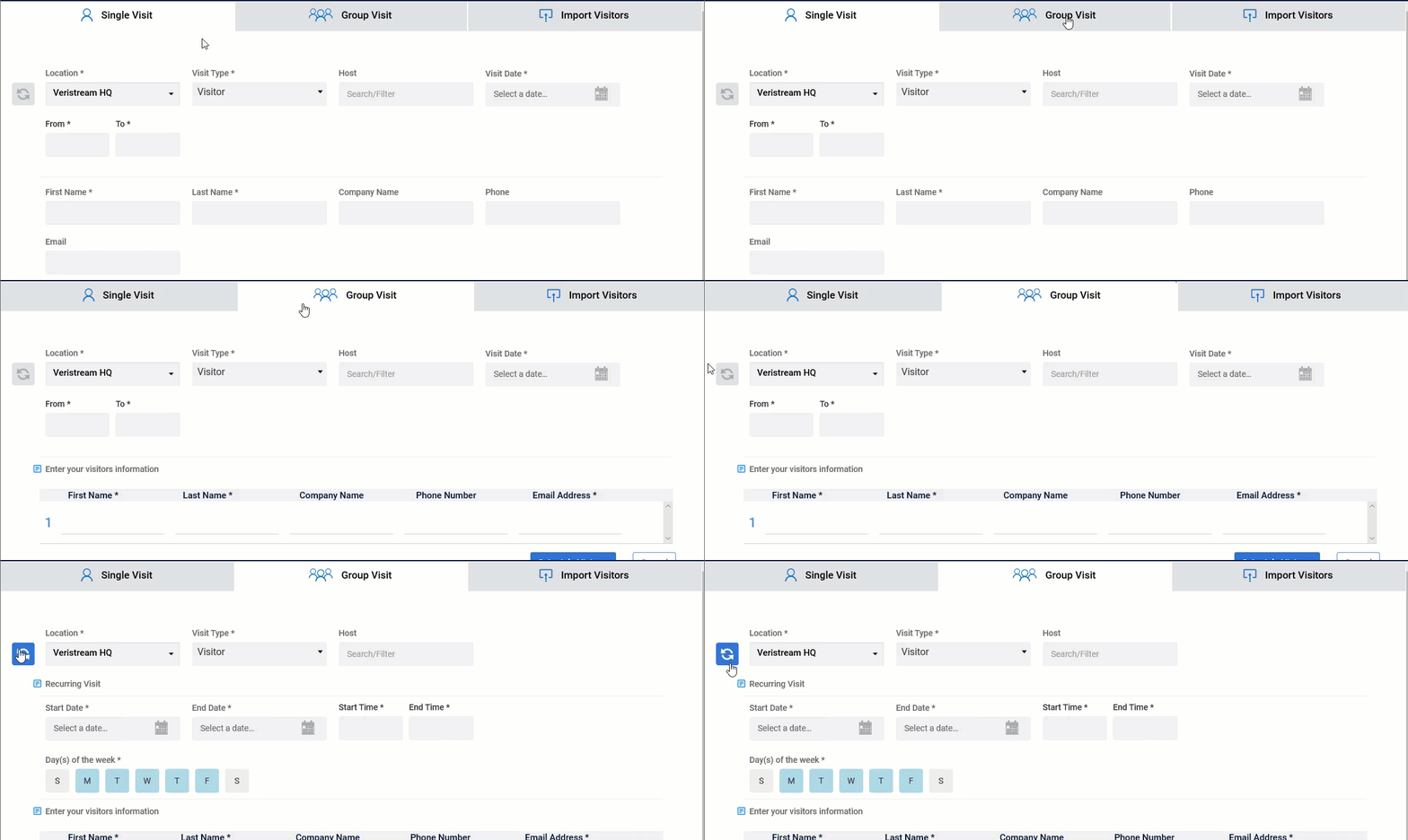
- Select the Location and the Visit Type.
- Start typing a name in the Host field, then select the host from the list of matching users.
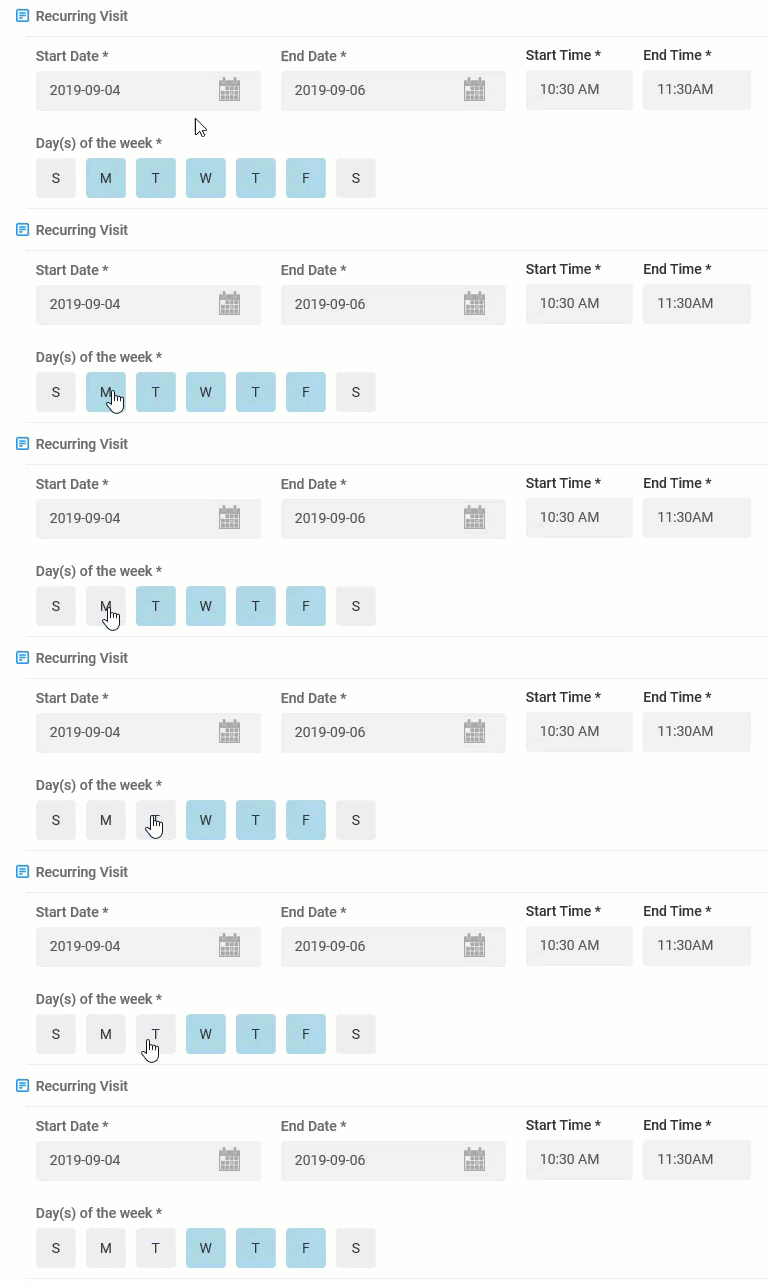
- Enter the Start Date, End Date, Start Time, and End Time. You can schedule visits up to 13 months ahead.
- Select the days of the week the visits take place.
- In the lower part of the panel, enter the Name and any other requested information for the first visitor.
- Click Add Row, scroll to the new row, and enter the next visitor's information. Repeat for each remaining visitor.
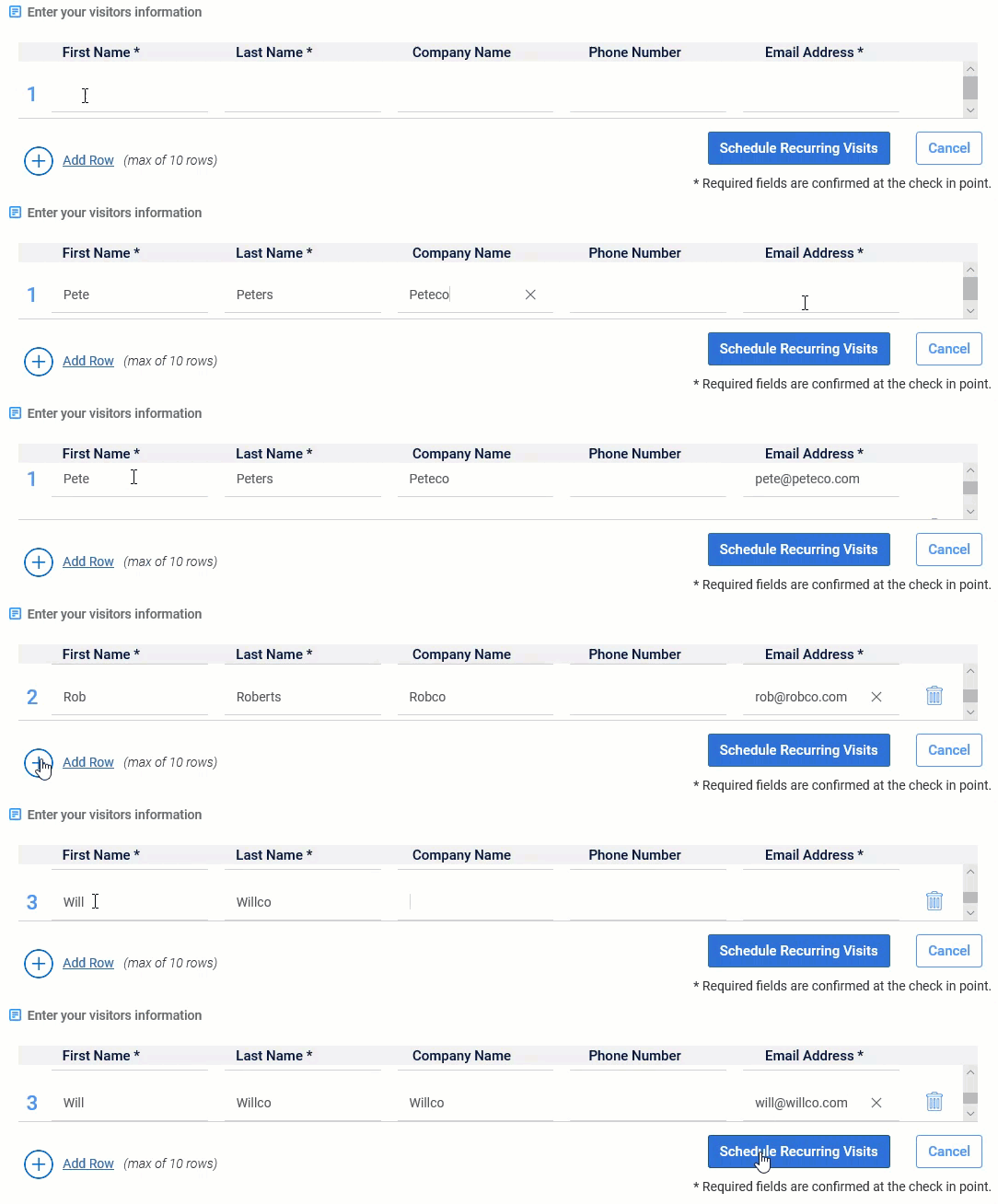
- Click Schedule Recurring Visits. To leave without saving, click Cancel.
Note: If the Visit Type collects Citizenship, that field stays empty on each scheduled visit. Every visitor chooses their own citizenship when they check in.
Result
The series appears on the Dashboard, and each visitor receives one QR code that works for every visit in the series.
Once a group series is scheduled, you cannot change the visitors' details all at once. Edit each visitor separately — see how to edit or delete a series of Recurring Visits.
Note: Whatever each visitor enters at the first check-in fills in automatically at later check-ins. Wi-fi credentials are generated fresh for every visit, and if the Visit Type requires a photo, the Kiosk takes a new one each time.
Comments
0 comments
Article is closed for comments.