
Learn how to pair a Brother 820 NWB printer with a Kiosk so it can print visitor badges.
Before you start
- Connect your printer to a Wi-Fi network.
- You need Global Admin or Local Admin permissions to pair a printer with a Location.
Steps
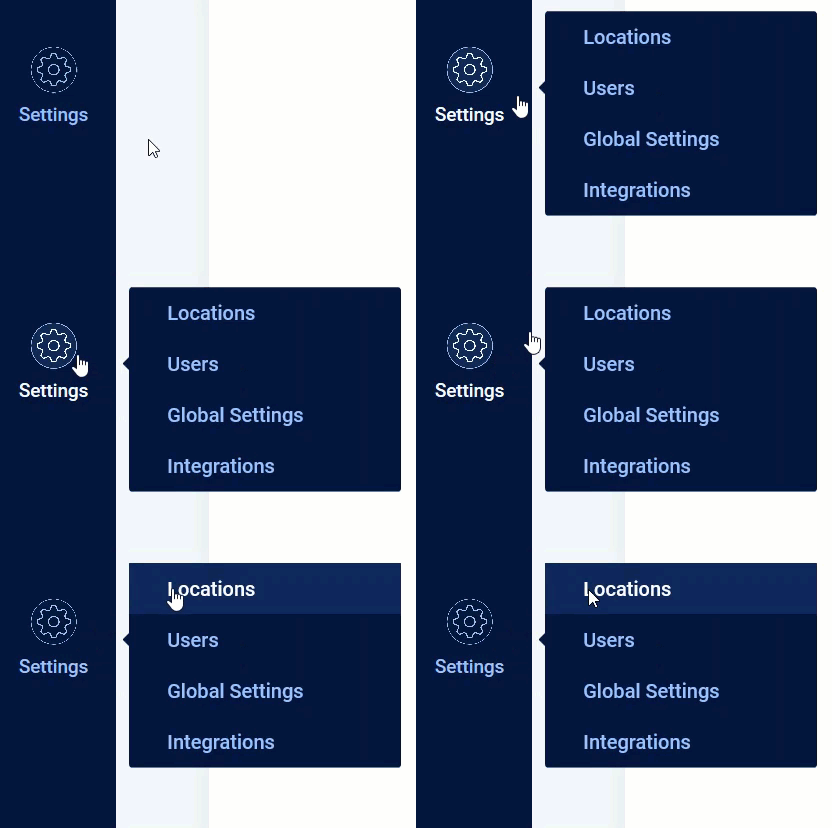
- Hover over the Settings icon on the left side of the window and select Locations.
- Search for or select the Location you want to modify.

- Select the Kiosks tab to open the Kiosks page.
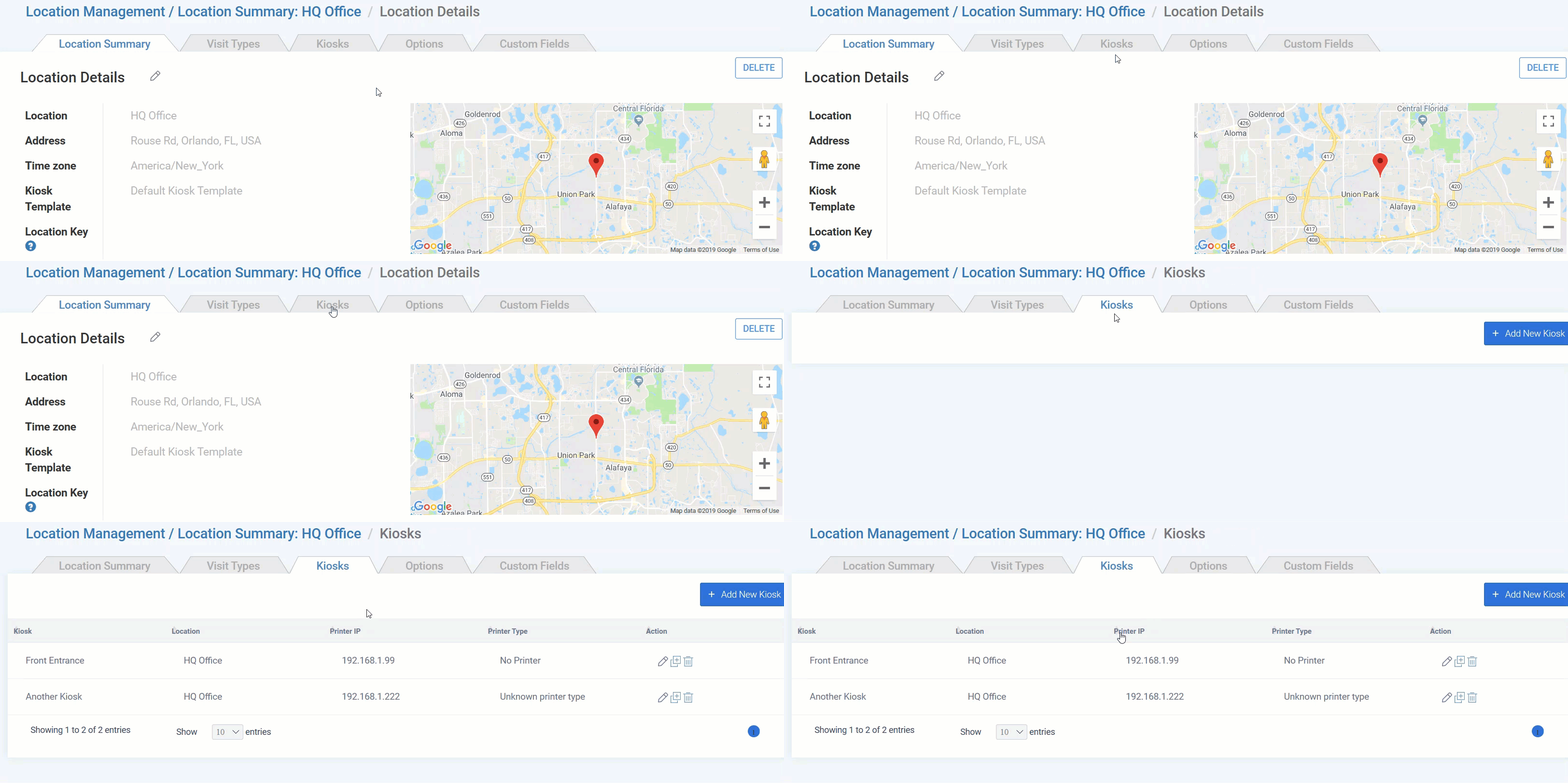
- If the Kiosk you want to pair with your printer already exists, find it in the list and click its edit icon
 . If it doesn't exist yet, click Add New Kiosk.
 - Under Badge Printer Setup, select the printer type.
- Enter the printer's IP address.
- Select the paper type. Warning: Don't select a sample roll of label paper. Sample paper types won't print badges.
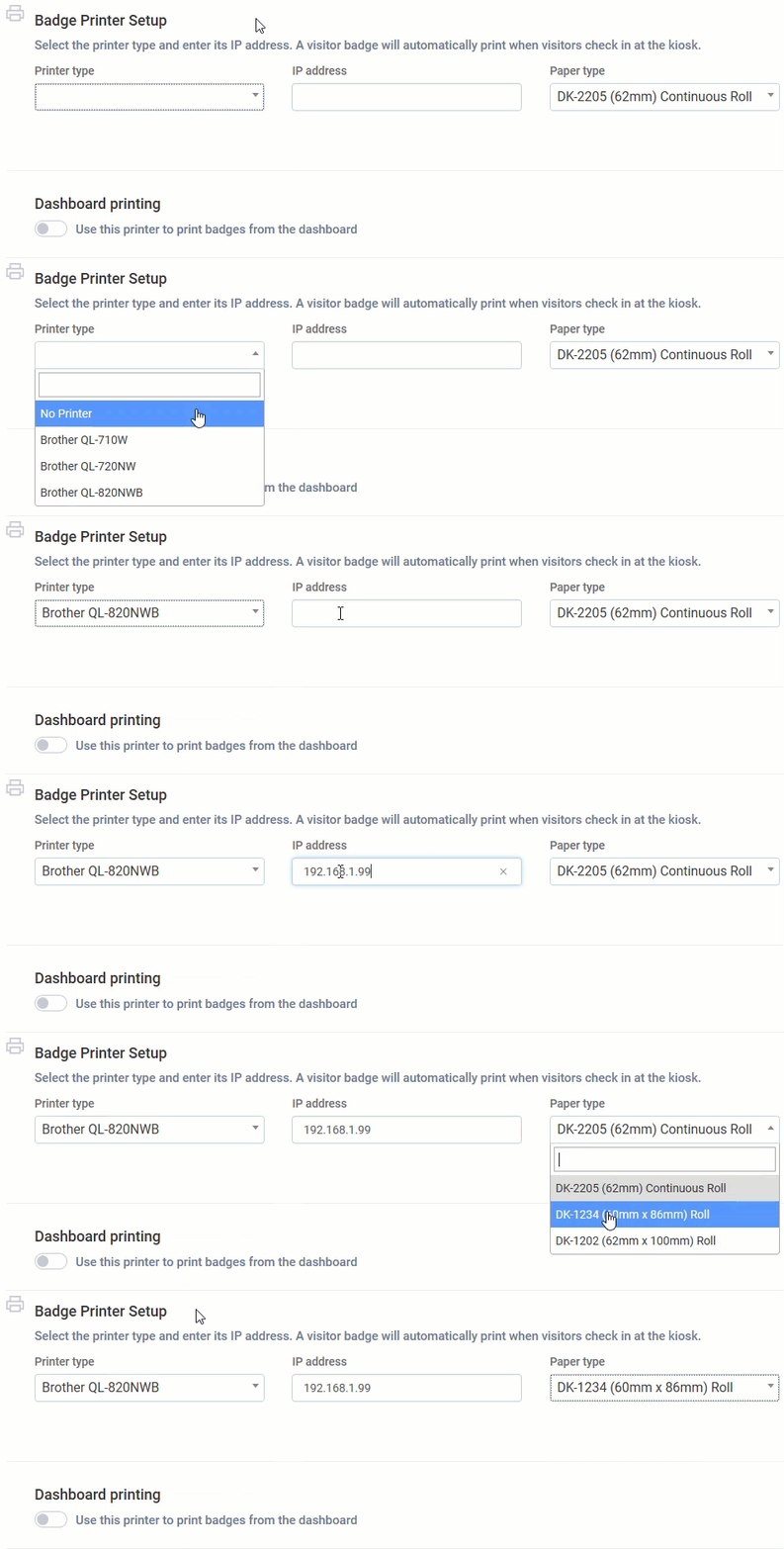
- To print badges from the Dashboard using this printer, turn on the toggle for Use this printer to print badges from the dashboard.

- Click Save.
Result
Your Brother 820 NWB printer is paired with the Kiosk and ready to print visitor badges.
Comments
0 comments
Article is closed for comments.