
Add a second sign-in step to your SV3 Enterprise account using an authenticator app.
Before you start
- Sign in to the SV3 Enterprise Dashboard.
- Install an authenticator app on your phone.
- Confirm you can open email sent to the address on your account.
Warning: After you confirm Multi-Factor Authentication (MFA), you cannot sign in until you finish the setup steps in the email. If you get stuck, ask a Global Admin, a Local Admin, or send a support request to support@sv3.com to turn MFA off for your account.
Steps
- In the upper-right corner of the Dashboard, click your email address.
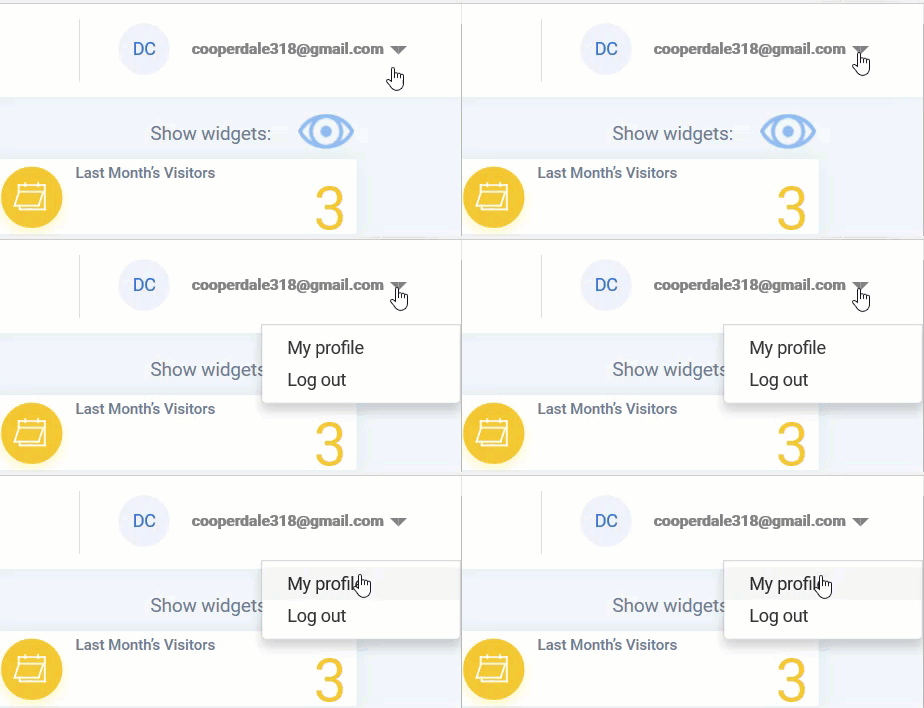
- Select My Profile.
- Click the Require Multi-Factor Authentication slider.
- Select Confirm. SV3 Enterprise sends a QR code to the email address on your account.
- Open the email and scan the QR code with your authenticator app.
- Enter the code from your authenticator app to finish setup, following the instructions from your authenticator app. Instructions will vary from app to app.
Result
SV3 Enterprise prompts you for an MFA code each time you sign in.
Comments
0 comments
Article is closed for comments.